Showing posts with label entrepreneur. Show all posts

Friday, April 18, 2008

Quick and Easy Search

After watching a friend painfully scroll through 1,000 messages in her inbox trying to find one from the right sender, it occurred to me that a lot of people don't realize how easily you can use the keyboard to find a message in a sorted list, or how easy these lists are to sort.

Almost any list control in Windows will let you type the first couple of letters in order to focus the selection on the item that matches in the current column. It's not exactly a new technique, but judging from that experience I felt it was worth sharing.


For instance, in Outlook 2007 you can sort by the "Arranged By:" header by clicking on it…
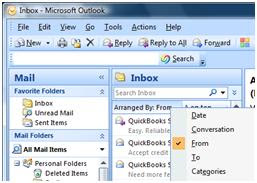
Normally, Outlook sorts by date received. You can leave the sorting by date and still quickly find your e-mail by typing the first couple of letters in the Search box.
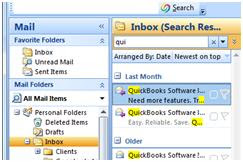


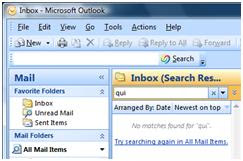
Suppose you have already filed the e-mail in a folder. Obviously the search won't find it because it's looking through your Inbox only. Just select "Try searching again an All Mail Items".


I know so many people that are given this tool at work and told "just use it for e-mail". They are never taught about the little tricks and all the powerful tools that can make their lives so much easier and more productive. For all of you that were thrown to the wolves out there, I hope these tips and tricks help.

Saturday, March 1, 2008

Guide to Using Check Disk in Vista

Anytime somebody has hard drive errors, I always recommend that they run chkdsk… what geek wouldn't? When howtogeek.com realized that there's no guide to using check disk, he decided to write one. I thought it was worth sharing, since no small business or entrepreneur can afford to have computer problems stop them. Here's his tutorial in full.

The chkdsk or "Check Disk" utility is used in Windows to scan through your entire hard drive and find problems… it's a lot like doing inventory… it's boring, but it has to be done sometimes. I recommend that you run through a check disk every month or two.

Using CheckDisk the GUI Way
Open up Computer and then right-click on the drive you want to check, and choose Properties.


Then select the Tools tab, and click the "Check Now" button.


A little dialog will pop up to allow you to choose the options you want for the disk check. You should check both options if you want to really check the disk properly, but if you just want to do a quick check you could select only the first one.


The only problem with that is that Windows can't check a drive that's being used, such as the system drive, but Windows will let you schedule a disk check for the next reboot.


You should keep in mind that running through a full check disk takes quite a while, sometimes hours depending on how big the drive is and how many files you have.

Pat Zappavigna is the owner of Instant Office Assistant, an administrative support services company. You can contact Pat at pazappa@verizon.net or through the website. Instant Office Assistant